iPhone Screen Time Complete Setup Guide: App Limits, Schedules & Passcode Lock on iOS 27 (2026 Edition)
Table Of Content
- 3 things Screen Time can do
- Setup walkthrough
- Step 1: Sort your apps into categories
- Step 2: Set the category's schedule and daily limit
- Step 3: Set a passcode
- Step 4: Set a Screen Time schedule
- Step 5: Set up Always Allowed
- Check your stats regularly
- Three ready-made setups
- Four weaknesses of the built-in features
- Ways to make the limits actually work
- A better tool for the job: build awareness and lasting habits with Clarymind
- FAQ
- Wrapping up
Does this sound familiar? One day you get motivated, open Screen Time on your iPhone, and set a 30-minute daily limit for Instagram. This time you'll finally scroll less. That same afternoon the limit runs out, a reminder pops up, your finger dismisses it on autopilot, and you keep scrolling until midnight.
This guide covers the whole setup in one place: Time Allowances (app categories), Screen Time schedules, Always Allowed, and the passcode lock, with screenshots for every step. It also lays out four weaknesses of the built-in features, and how to work around them.
If these settings feel tedious and complicated, try Clarymind. Setup is intuitive and simple. It's also more effective, because it's designed to build your awareness of how you use your phone. More on that at the end.
This guide is based on iOS 27. iOS 27 turned App Limits into a category-based system, and the interface looks quite different from before. If you haven't updated yet, things will be in slightly different places, but the concepts carry over.
3 things Screen Time can do
Before you start, here's what it offers:
| Feature | What it's for |
|---|---|
| Time Allowances | Sort apps into categories and set how long each category can be used per day |
| Screen Time Schedule | Set which hours of the day the phone is usable (e.g. lock things down before bed) |
| Always Allowed | Apps that stay available even during a scheduled lock, like Phone and Maps |
Setup walkthrough
Step 1: Sort your apps into categories
Starting with iOS 27, App Limits are category-based. Every app belongs to a category, and the limit follows the category. You can no longer set a time limit on one specific app. By default, every app sits in "All Other," which has no limit.
- Open Settings and tap Screen Time.
- Tap "Apps & Websites" and find the app you want to limit (there's a search box below).
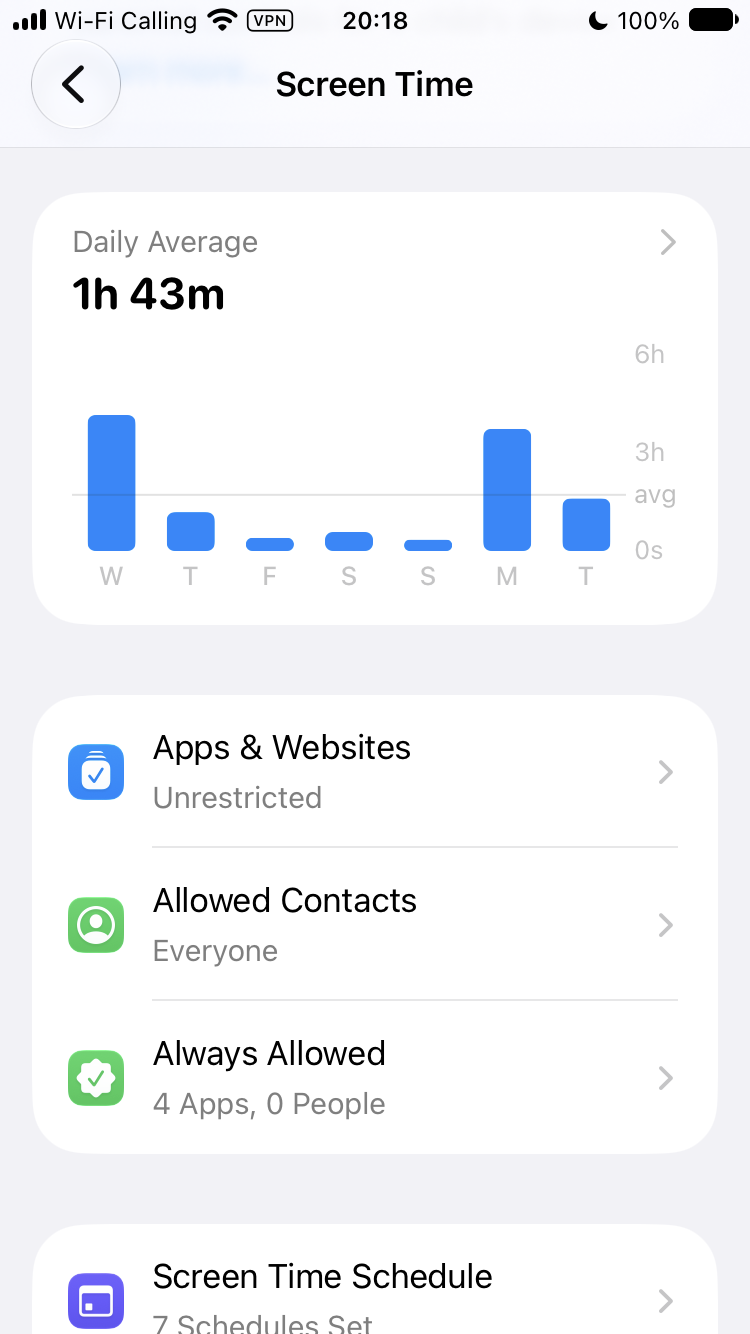
- Open the app's page and tap "Move to New Category."
- Tap "Add" and pick a category. Built-ins include Entertainment, Games, and Social Media, or choose Custom to name your own.
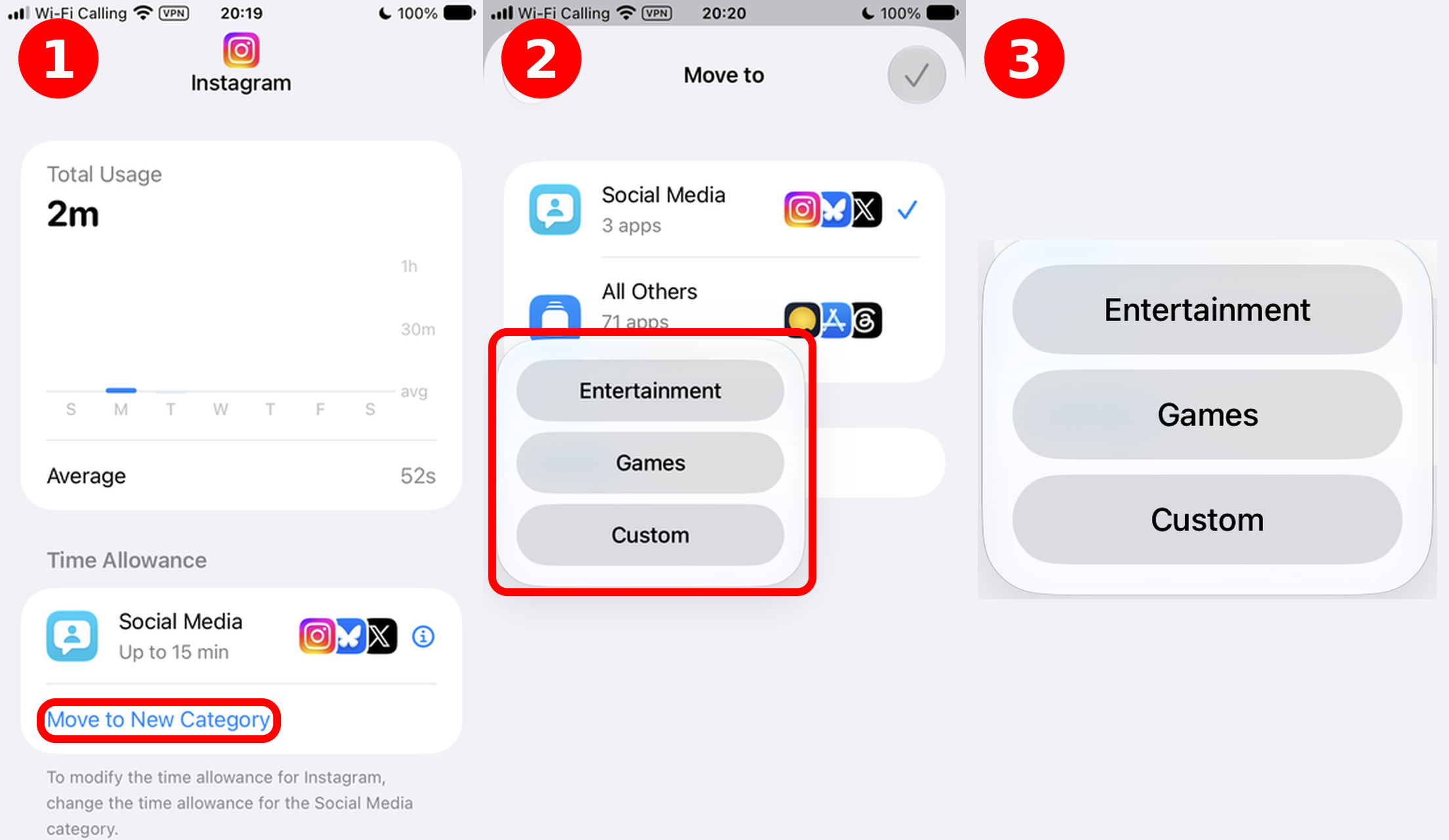
You can name categories yourself. Here I'm using the built-in "Social Media" as the example. When you want to adjust limits later, there's no need to change apps one by one. Just change the category and everything in it follows.
Step 2: Set the category's schedule and daily limit
With the category chosen, set when and how long it can be used each day:
- Set the allowed hours for each day of the week (e.g. only on certain days), then tap Continue.
- Set the minutes per day, e.g. 30 minutes. Leave "Include in Shared Time Allowance" on and tap Done.
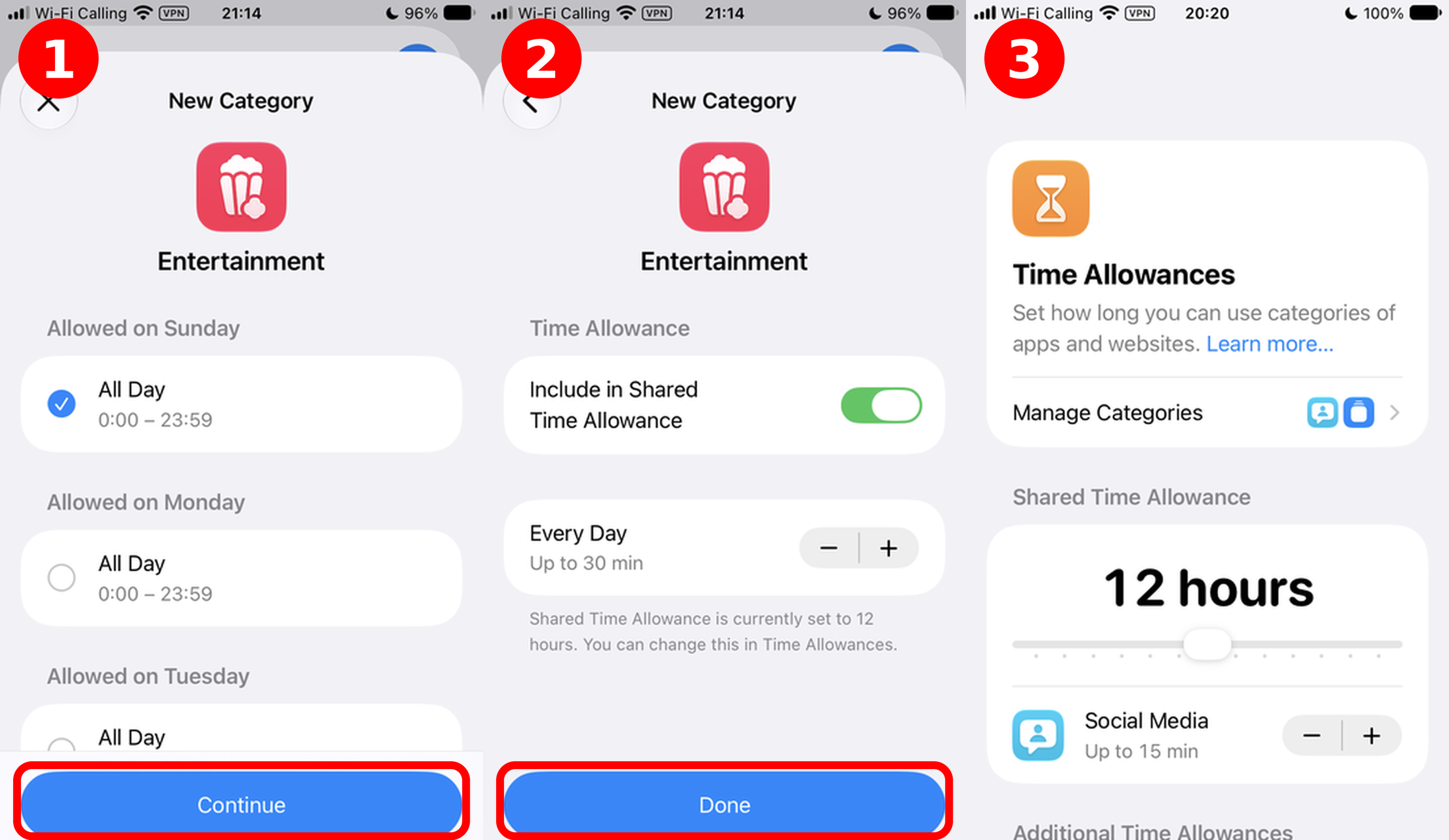
At the top of the "Time Allowances" page there's also "Shared Time Allowance," which caps the total across all categories for the day. Lower the total and each category's limit shrinks proportionally (e.g. Social Media drops from 30 minutes to 15).
If you only want to block one specific app, you don't need a category: scroll down on the app's page and tap "Block App & Website."
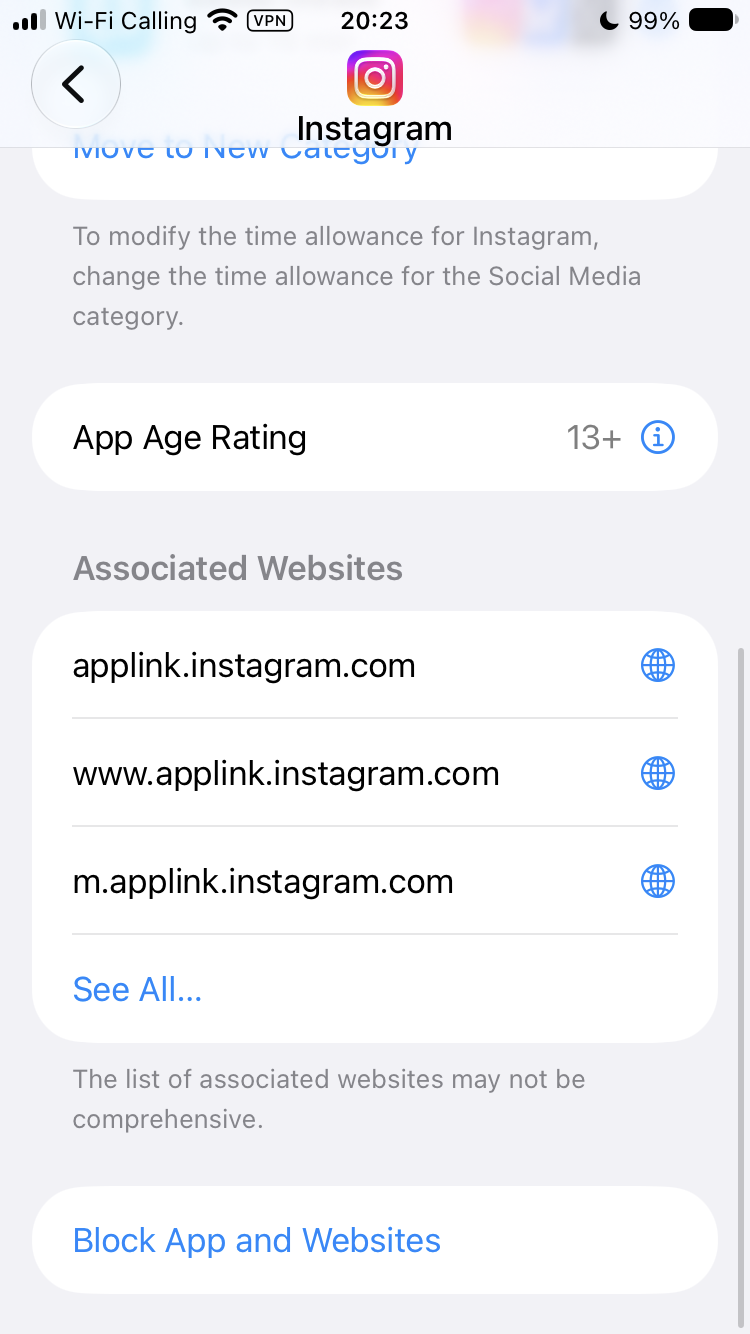
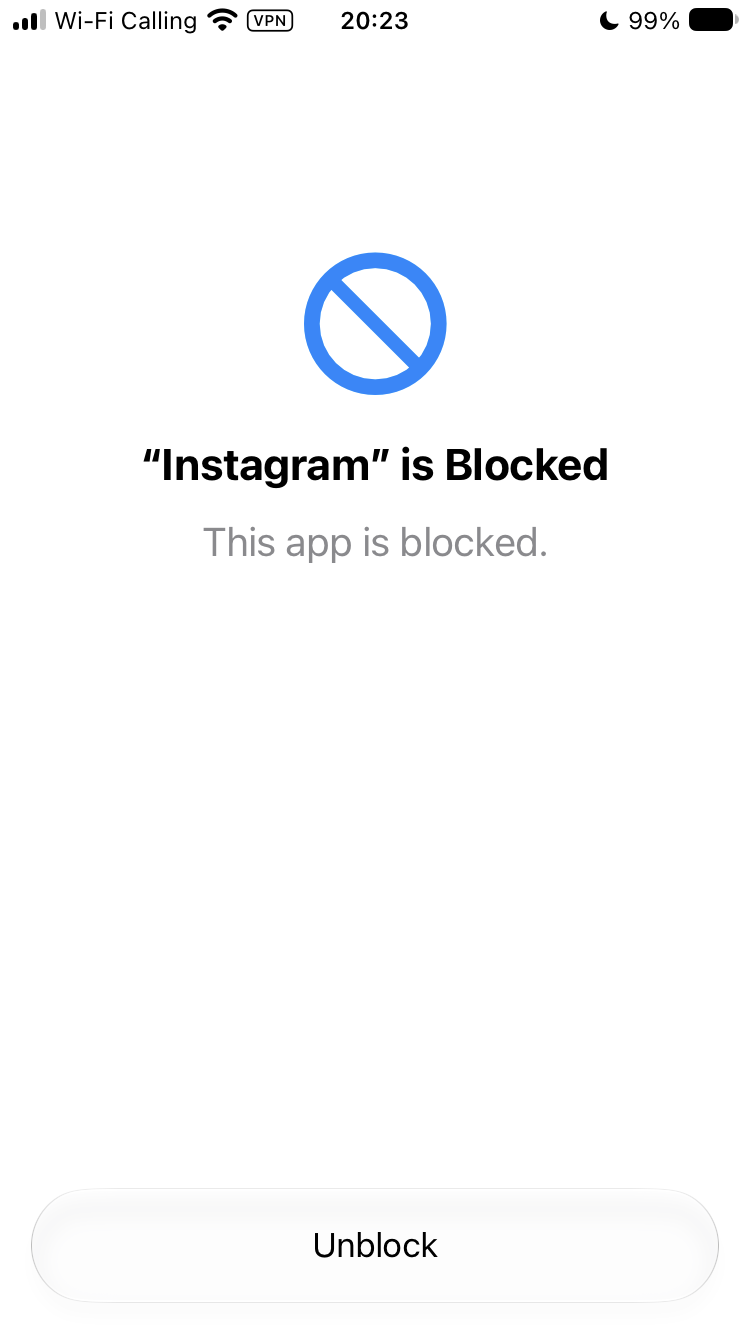
This lock takes one tap to undo, though. It can only stop you opening an app on autopilot. When you genuinely want to scroll, it won't stop you.
No need to lock down every app at once. Start with the one you open most often. The Screen Time main screen shows a ranking of your app usage. The top few are usually the ones most worth limiting. Try locking one and see if your days feel any different.
Step 3: Set a passcode
- Go back to the Screen Time main screen and open "Passcode & Management."
- Tap "Lock Screen Time Settings" and set a 4-digit passcode.
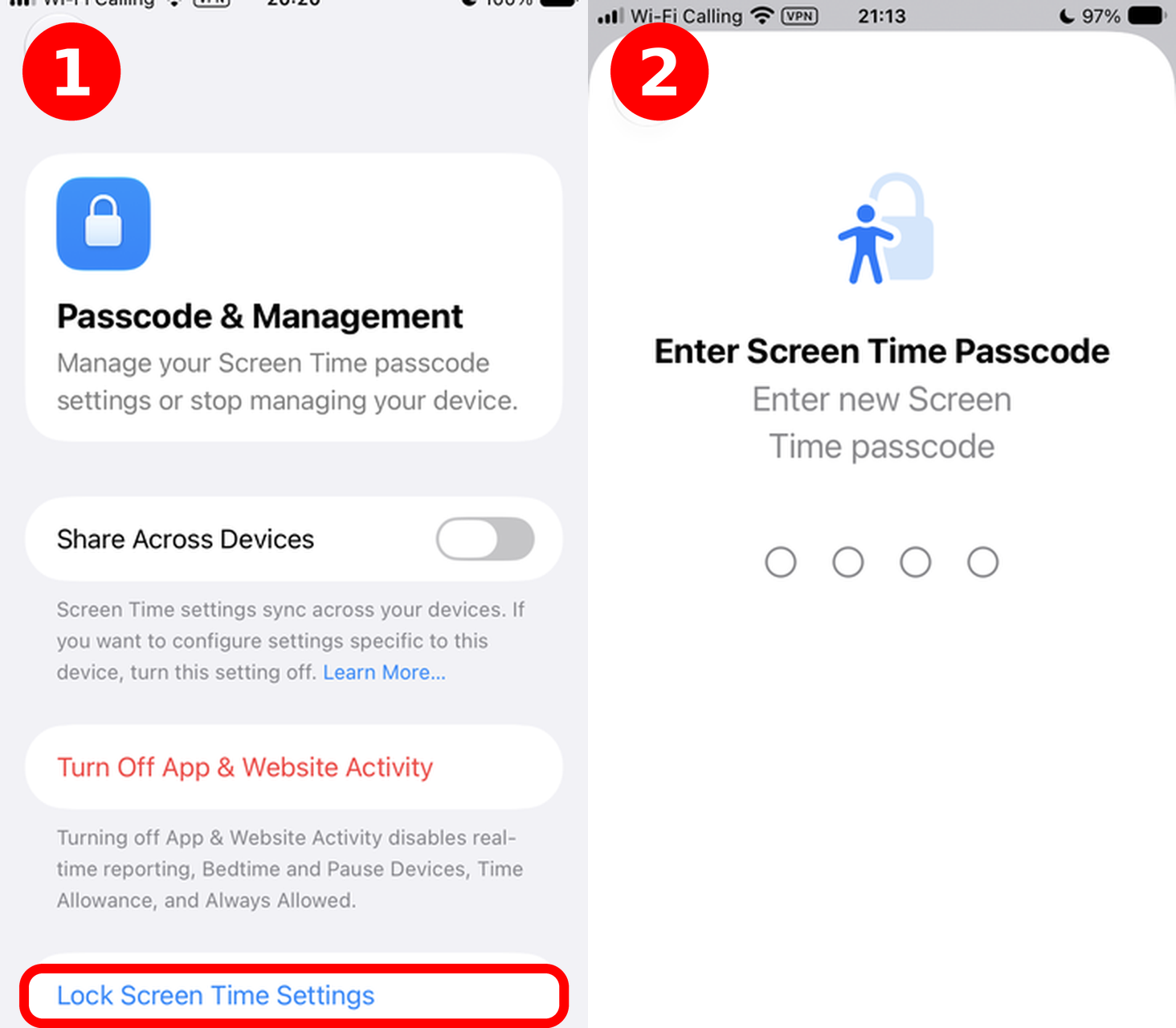
Ask someone you trust, like a partner or a close friend, to set it and keep it for you. If you know the passcode yourself, you can change the settings whenever you feel like it, and the limits stop meaning anything. Having someone else hold it is a hassle, but the hassle is the point. Otherwise it's too easy to unlock.
On the same page you'll find "Share Across Devices." If you use both an iPhone and an iPad, turning this on syncs the settings so you don't have to set everything up twice.
Two things to know first. One: with it on, usage from both devices gets added together, so your daily total can exceed 24 hours. Don't panic if you see 26 hours. That's just the sum.
Two: quite a few users on forums abroad report that after turning on sync, some day's stats balloon to dozens or even hundreds of hours. That's clearly a sync glitch, since nobody can scroll that much. If your numbers look absurdly high, try turning this off and watching for a few days.
Step 4: Set a Screen Time schedule
Schedules are great for bedtime and work hours. The logic: first define which hours of the day the phone is "allowed," then choose which categories are available during each block. Outside those hours, those apps won't open.
- On the main screen, tap "Screen Time Schedule." By default, every day is fully allowed.
- Tap "Add Time Segment," give it a name, and set a start and end time (e.g. 1:00 PM–2:00 PM).
- Check the categories allowed during that segment. Unchecked categories can't be used then.
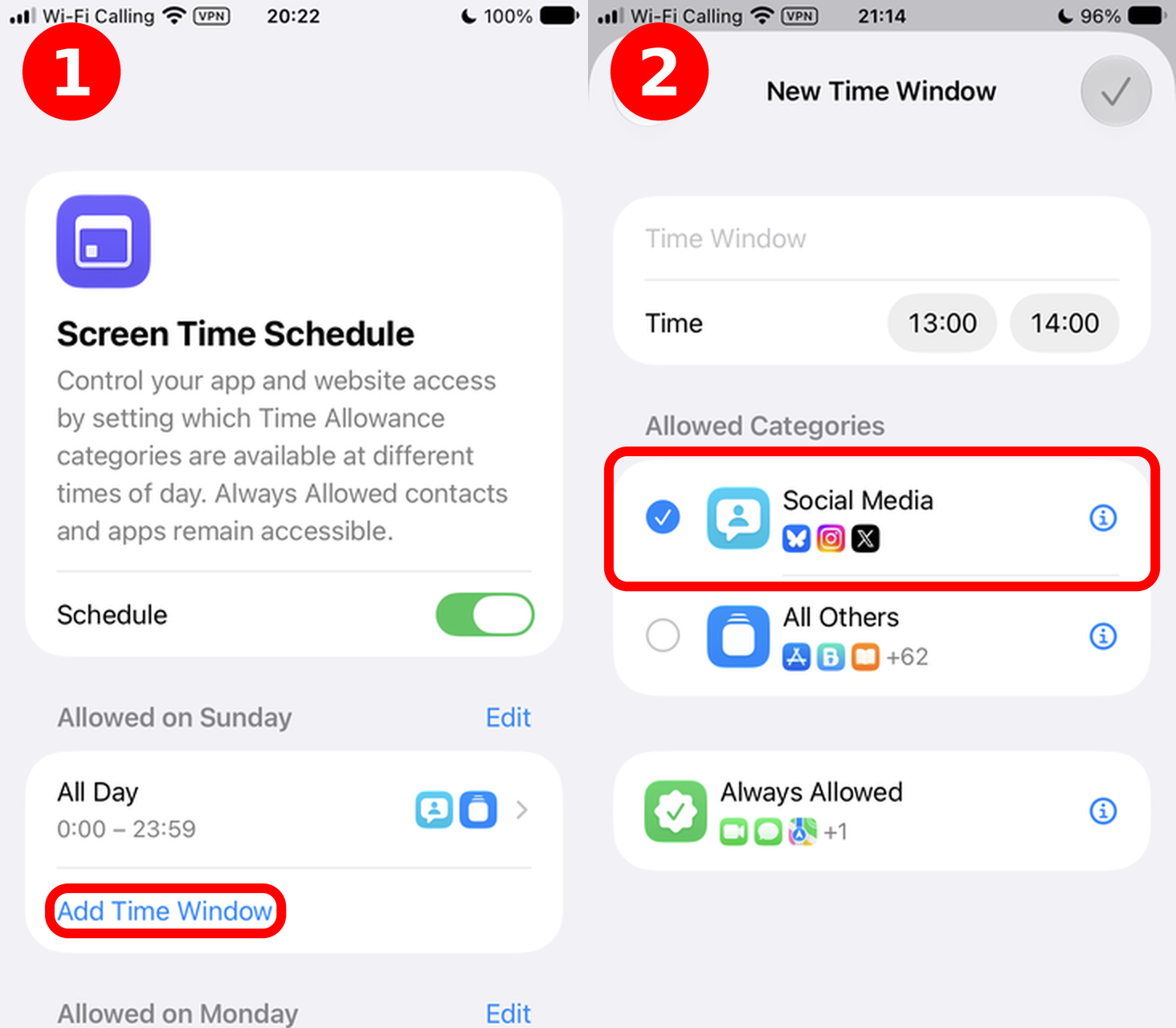
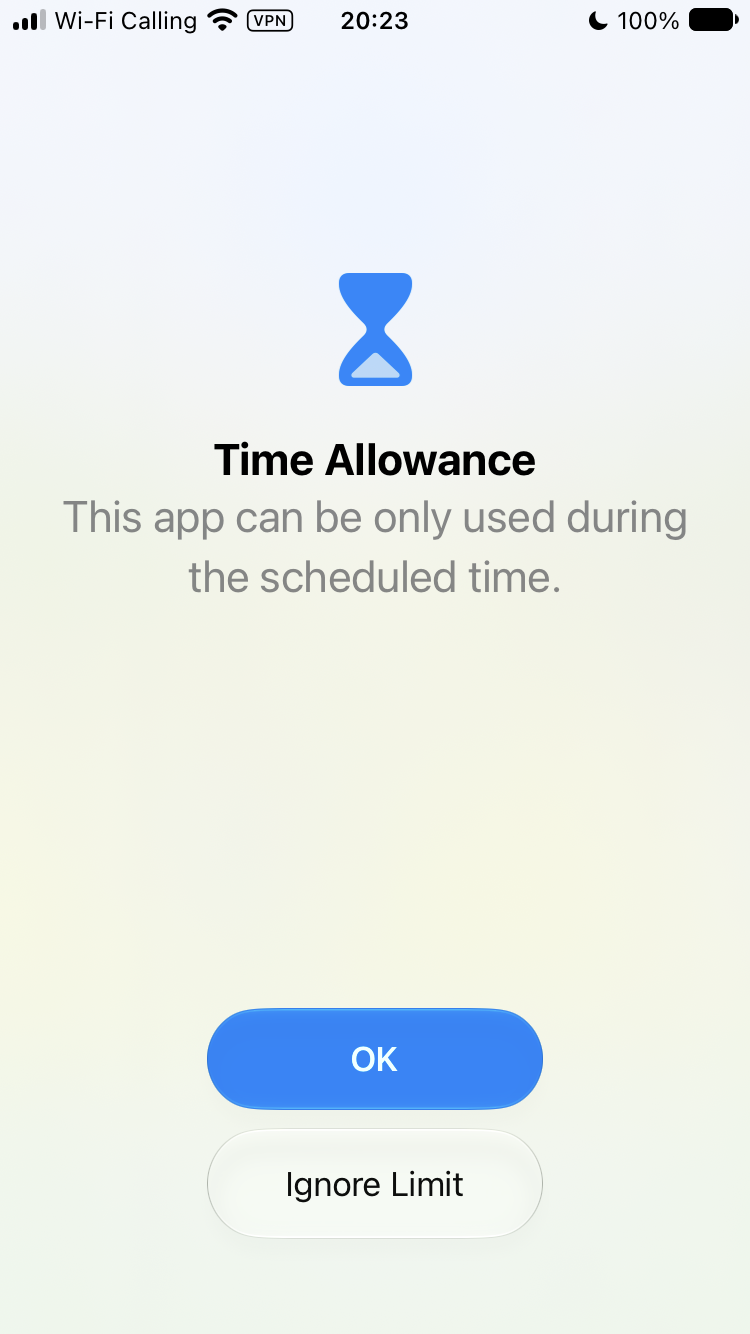
Opening an app outside the allowed hours brings up the "Time Allowance" screen: "This app can only be used during scheduled time."
Step 5: Set up Always Allowed
Some apps need to stay usable during a scheduled lock, like Phone and Maps. On the main screen, tap "Always Allowed" and add them. You can add contacts too. Calls from added contacts won't get blocked.
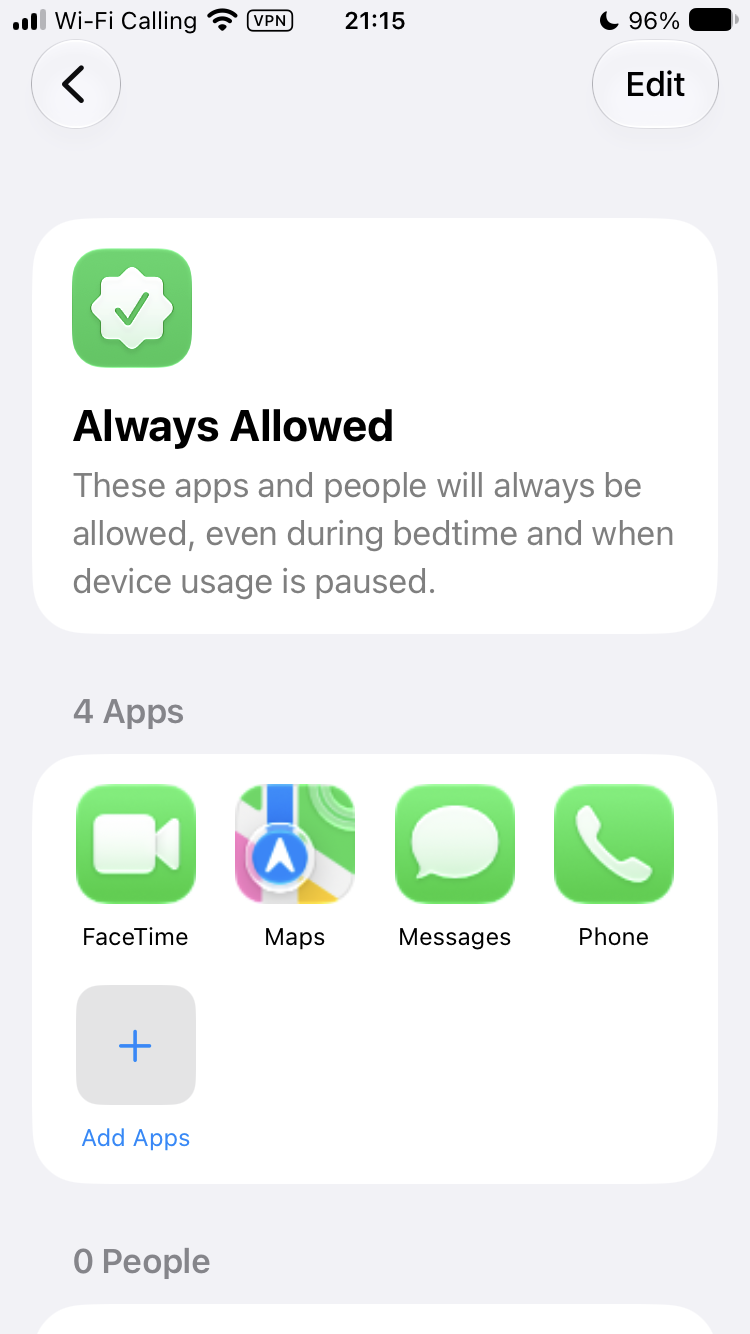
Easy to forget, but it matters. Otherwise you'll be trying to call a ride at midnight and the app won't open.
Check your stats regularly
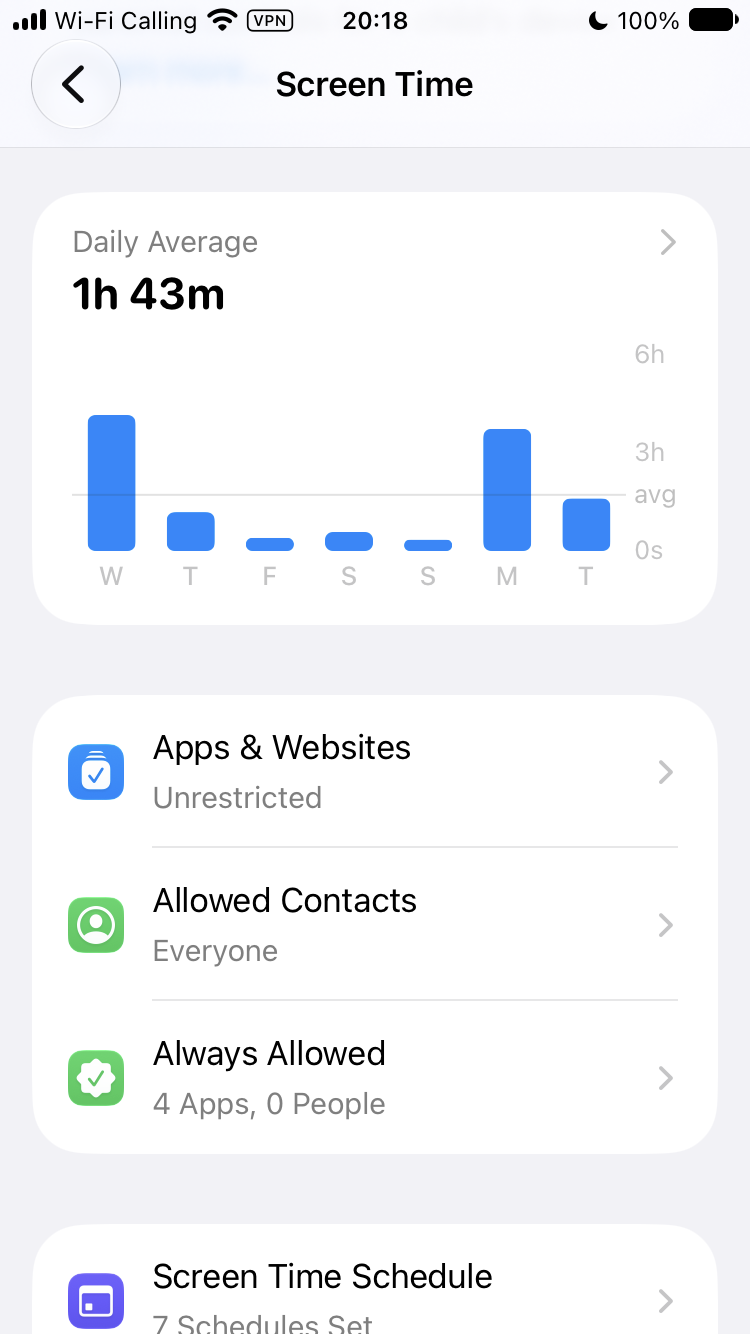
Setting it up isn't the end. Once a week, take a look at your stats. The Screen Time main screen shows daily and weekly reports: which apps ate the most time, how many times you picked up the phone, how many notifications you got.
The first look is usually a shock. Plenty of people think they scroll an hour a day. It's actually three. Once you know where the time goes, come back and tune the category limits. They get more accurate over time.
Three ready-made setups
If you don't know where to start, just copy one of these.
The focused workday: Put social apps in one category with a 30-minute daily limit. Then use a schedule to lock down late nights outside work hours, leaving only Phone, Messages, and Maps.
The bedtime setup: Schedule the Social Media category to be unavailable after 11:00 PM, and charge the phone in the living room. Wake up with a regular alarm clock so you don't start the day scrolling.
The relaxed weekend: When creating a category you can set allowed hours per weekday. Loosen up on weekends, e.g. from 30 minutes to an hour.
Four weaknesses of the built-in features
Setup's done, but the built-in features have four weaknesses worth knowing about upfront:
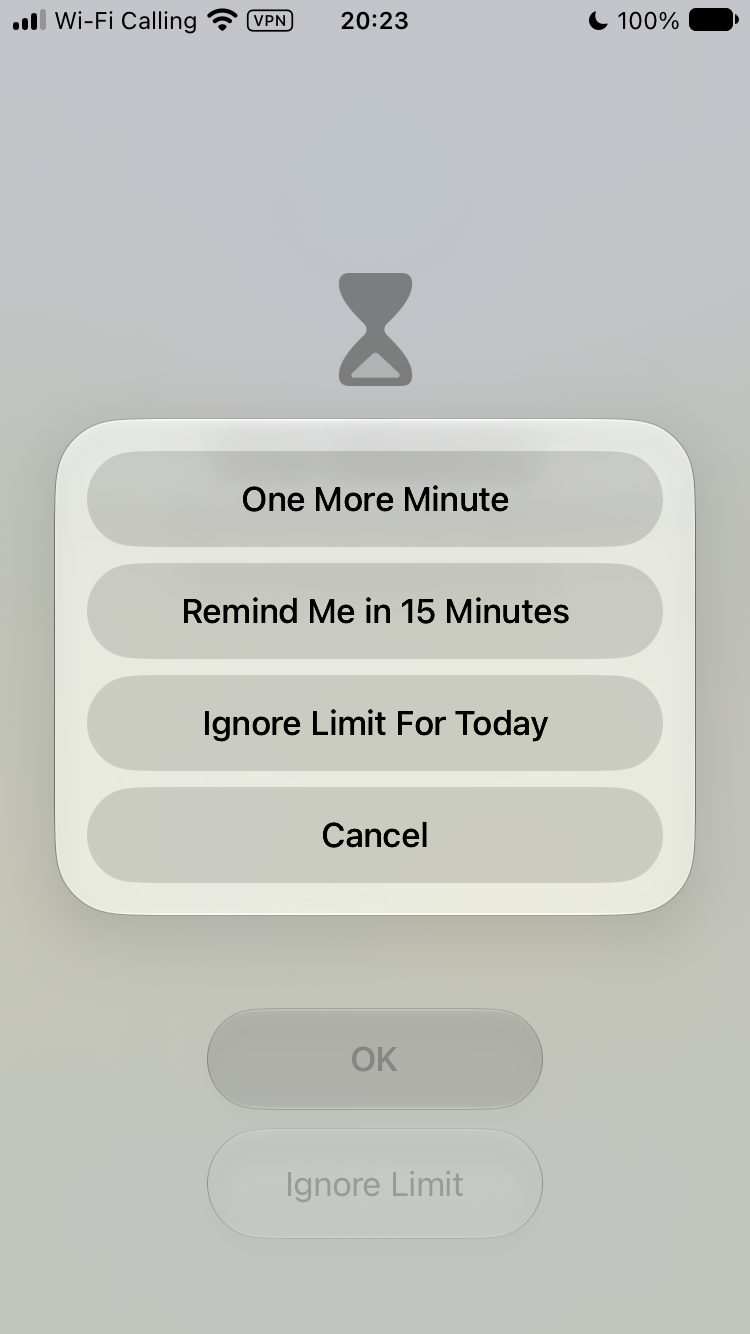
First: when time runs out, one tap keeps you going. When a category limit hits, a reminder pops up offering "One More Minute," "Remind Me in 15 Minutes," or just "Ignore Limit For Today." The timer ends, and you get to decide to keep scrolling anyway.
Second: "blocking" an app is easier to undo than it looks. You tap "Block App" on the app's page, but unblocking is a single tap on "Unblock." It can't stand up to a genuine "I want to scroll right now" impulse.
Third: you set the passcode yourself. If you set it and remember it, you can go in and change the settings or turn the limits off any time. That's why the passcode is better off with someone else.
Fourth: it can't stop mindless opening. Before the time runs out, apps are completely unaffected. Plenty of people don't scroll for long stretches. They open an app 50 times a day for 3 minutes each, and it adds up. Time Allowances can't touch that pattern.
Ways to make the limits actually work
For the weaknesses above, a few things help, and you can do them right now:
Have someone else keep the passcode. This is the strictest option: ask a partner, family member, or friend to set the passcode and remember it while you never learn it. Any settings change or early unlock has to go through them.
Turn off notifications for social apps. Go to Settings > Notifications and silence the apps that pull you back in. Half the time you pick up the phone, it's just a notification dragging you back.
Move social apps off your home screen. Long-press an app icon, choose Remove App > Remove from Home Screen. The app is still on the phone. You just have to dig through the App Library to find it. One extra step, fewer mindless opens.
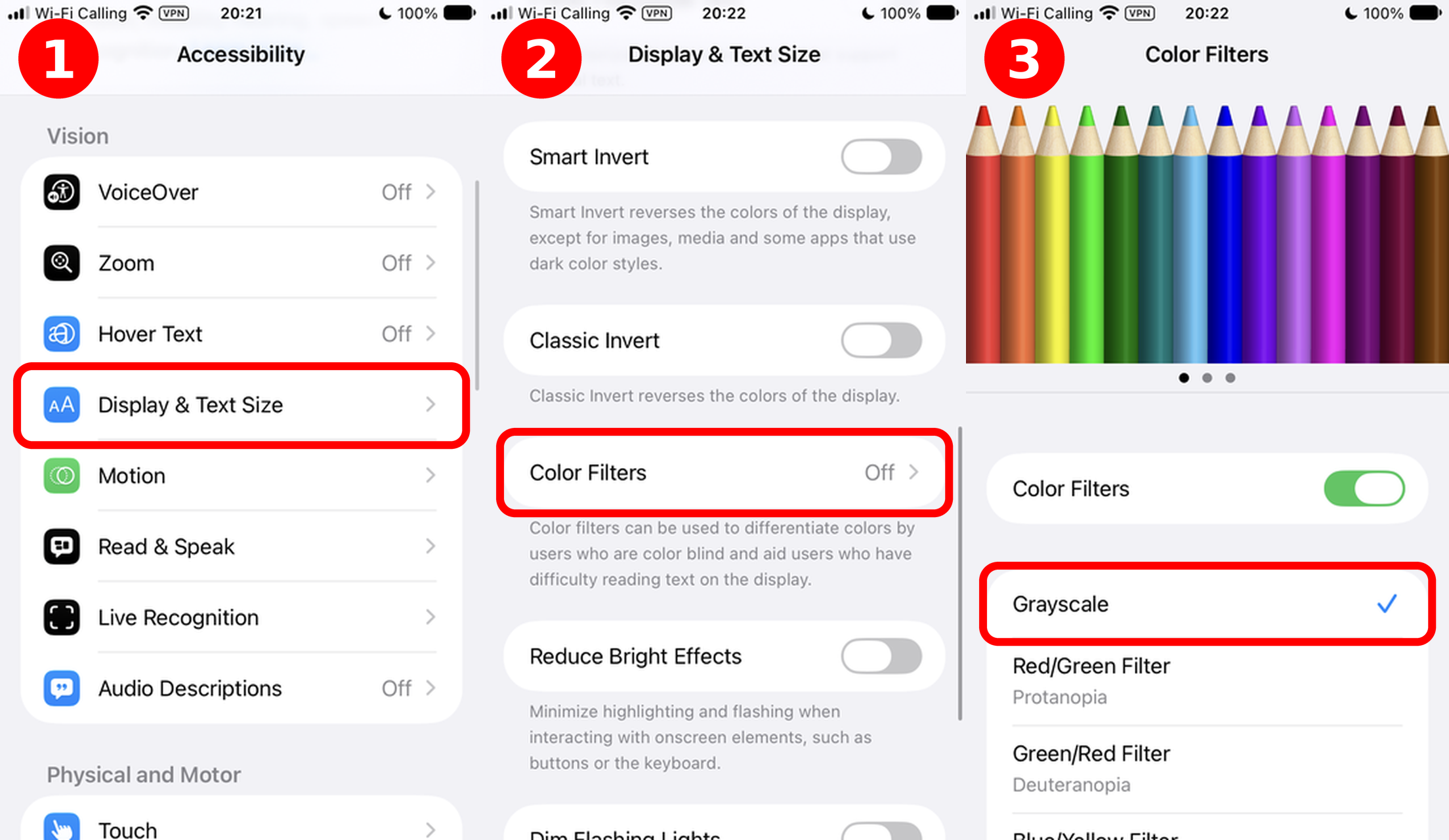
Turn your screen grayscale. Go to Settings > Accessibility > Display & Text Size > Color Filters, turn it on, and pick Grayscale. Photos and videos look dull in black and white, and scrolling gets a lot less appealing. You can switch back any time.
Keep the phone out of reach at night. Charge it in the living room, keep a regular alarm clock in the bedroom. Physical distance is the simplest limit there is.
If you've tried all of this and still find yourself dismissing the limits every day, the different approach in the next section might suit you better.
A better tool for the job: build awareness and lasting habits with Clarymind
After all that, here's the built-in features' biggest problem: they run on willpower. They assume you'll obediently respect the limit every time. But in reality, when the limit pops up, you're usually scrolling on autopilot, and social media's dopamine has your finger dismissing the reminder before your brain catches up.
Clarymind starts from a different idea. Its goal is to help you "wake up your awareness" and build habits that actually last.
Here's how it works: once you've locked the apps that distract you, every time you open one, you first answer a question: why are you opening this app? Maybe "replying to a friend," "checking the bus schedule," or "no reason, just felt like scrolling." There's no right answer. The point is to make you pause for three seconds.
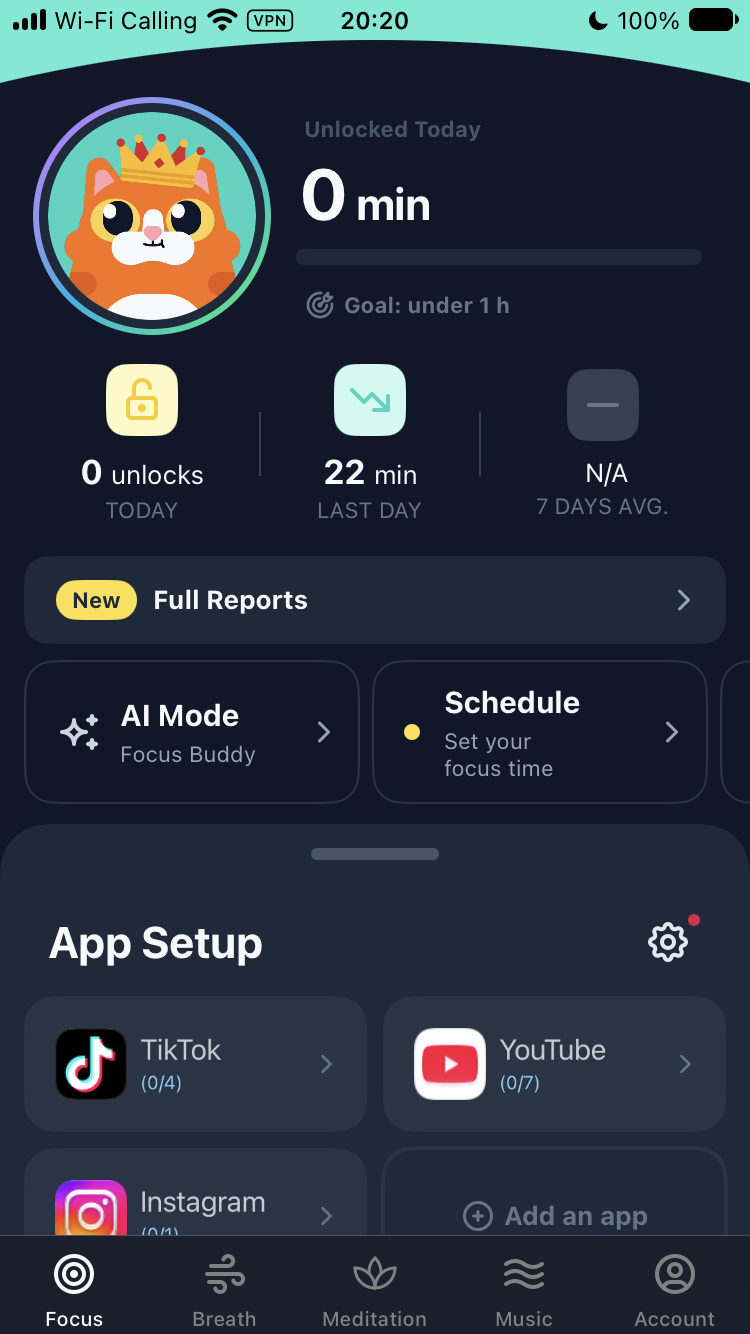
Most of the time we don't open apps for a reason. It's muscle memory: feel bored → pick up phone → tap Instagram. Answering the question breaks that automatic loop. Over time, you start noticing when you most want to scroll: waiting at a red light, standing in line, or just feeling bored. Once you notice, habits can actually change.
Don't think of it as a beefed-up version of the built-in limits. It's a different system that replaces them. Built-in limits rely on you resisting the urge to dismiss them every time. Clarymind makes you aware of what you're doing, every time.
If the built-in setup felt tedious and complicated, give Clarymind a try. Setup is intuitive and simple, and more effective. Especially recommended if you've tried the built-in features and found the limits don't work on you. 👉 Check out Clarymind
FAQ
A few questions people ask a lot.
What if I forget my Screen Time passcode?
On the passcode screen, tap "Forgot Passcode" and verify with your Apple ID. Then you can reset it.
Do the settings transfer to a new iPhone?
If "Share Across Devices" is on, they sync with your Apple ID to the new phone. No need to set everything up again.
Can I use Time Allowances and schedules together?
Yes, they're independent. For example, use category limits to cap total social app time during the day, and a schedule to let the phone rest after 11:00 PM.
How accurate are the usage stats?
Roughly. They show which apps take most of your day. Some background activity can get counted too, so treat the numbers as a reference.
Does turning on Screen Time slow down the phone or drain the battery?
No. It just records usage and enforces limits in the background. The impact on speed and battery is negligible.
Why does my Screen Time show 24 hours with only the Settings app?
Usually because the phone's system clock was set to the future at some point. Screen Time counts time using the system clock, so when the clock is wrong, reports and timers break. The symptom: one day shows nearly 24 hours with only the Settings app logged, everything else empty.
Those broken days are basically unrecoverable. You'll have to wait for new stats to cover them up. Think twice before changing the clock. And if you changed it to get around app limits, Clarymind might suit you better.
Wrapping up
Built-in Screen Time is a starting point: nothing to download, and following the steps above gives you basic blocking. Just remember to have someone else keep the passcode. Otherwise it's easy to talk yourself into removing the limits.
If the built-in limits aren't doing much for you, try Clarymind. The idea is different: before unlocking an app, it asks why you're opening it, helping you notice your own habits. 👉 Check out Clarymind